
How to Change My Default Card on Apple Pay Easily
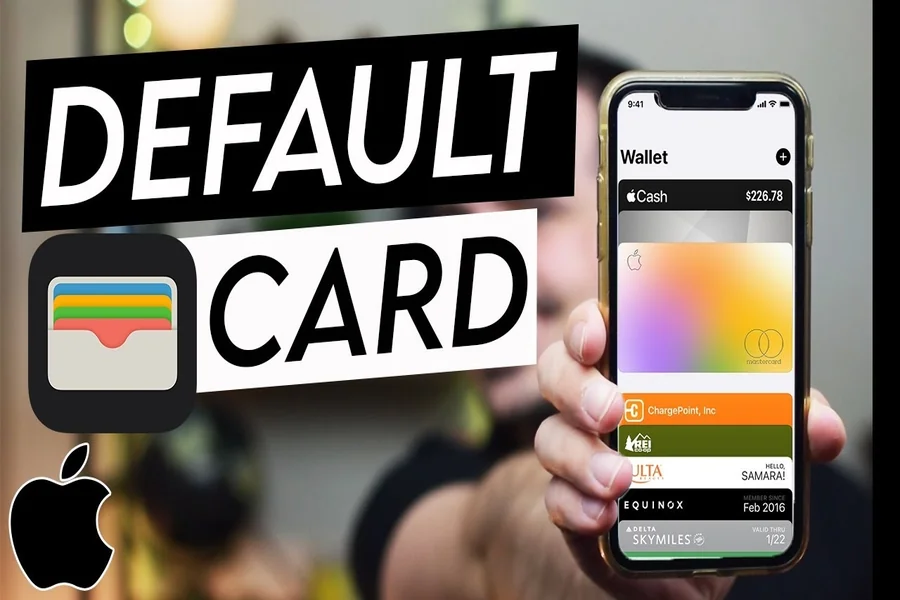
Should you have a query on how to switch my default card on apple pay, it implies that you would like to have greater control over how your payments are conducted. The default card is a significant part of that experience as Apple Pay is designed to ensure transactions are fast and simple.
The default card is the one that will be set to use when you use Apple Pay. This implies that whenever you are paying using your device, you will first see that card when you double click. Although it is convenient, it can change to inconvenience when your spending patterns change.
Here are some examples: you may wish to transfer to the card with more rewarding benefits, cashback, or budgeting. Some people might wish to not use a credit card, and instead use a debit card. In some cases, it is just a matter of renewing an expired card or issuing a new card.
Knowing why you should change the default one assists you in utilizing Apple Pay more efficiently and prevent making irrelevant errors when performing transactions.
Apple Pay Default Card: How it Works
It is vital to know how to change anything before altering the default card system. By default, a card that you add to Apple Pay becomes your default payment card.
Apple Pay does not automatically keep your default choice up to date as you add more cards. It does not replace the original card automatically, rather it uses it.
Most transactions such as purchases in shops, online payments and in app checkouts use this default card. But you can also change cards manually with Apple Pay prior to confirmation of a payment.
This flexibility implies that you are never stuck in a single card but proper default configurative is a time saver and less effort is expended.
Having an understanding of how the system operates means that you will have a better time managing your payment preferences.
Step by Step Guide to Change Default Card
It is easy to change your default card on Apple Pay. To begin with, access the Settings application on your iPhone. Scroll down and tap on Wallet and Apple Pay.
You will find an option in this section, which is labeled Default Card. To see the list of cards you have added to your Apple Wallet, tap it.
Choose the card that you would like to use as default. After tapping it, the selection will be saved immediately. This card will automatically be used thereafter in carrying out your transactions.
The other means is via the Wallet app itself. Tap open and hold the card that you wish to default. And then push it to the top of the stack of cards. This is the easiest thing to do to designate it as your first card.
Both are convenient and enable you to revise your choice at any time.
Replacing the Default Card in Various Apple gadgets
Apple Pay is compatible with various devices, and each of them can have a personal default card. That is, you can tailor your payment experience according to the device you are on.
On Apple Watch, you are able to switch the default card using the Watch app via your iPhone. Enter Wallet and Apple Pay, select Default Card and choose an option you like.
On an iPad, it goes the same way as with the iPhone. In settings open Wallet and Apple Pay, renew your default card.
Online purchases made with a Mac allow you to operate your Apple Pay preferences in System Settings. This will enable you to select a default card when making web transactions.
It can be handy to have various default cards in various devices to manage the costs and keep personal and work-related payments apart.
Read More: Can I Fold A Check Safely Without Causing Problems?
Suggestions on how to use a couple of cards effectively
Having a few cards in Apple Pay is a good idea, so it can be better to take care of them in order to enhance your experience. Being reminiscent like having your most used card as the default is a helpful trick.
The Wallet app can also help you manage your cards. You can have your favorite cards on the front of your wallet so that you can easily get them when you need to make a transaction.
Another tip is to regularly review your cards. Eliminate those expired or not in use. This will maintain your Wallet clean and minimize the confusion.
In case you have various cards to do various things, you may want to change your default card depending on the needs. As an illustration, you can take one card that will be used as daily expenses and another one that will be used as large purchases.
Being organized will enable you to take decisions quicker and prevent errors during payment.
Security Consideration Noting the Changing of Cards
There is no impact of swapping your default card to the security of Apple Pay, and best practice is still important. The Apple Pay encrypts highly and does not transmit your real credit card number to stores.
All transactions are authenticated by Face ID, Touch ID or passcode. This will make sure that only you can approve payments.
Nevertheless, your device should never be left unattended. Do not leave your passcode on your phone and lock your phone when not using.
Should you lose or get stolen, you can disable Apple Pay remotely using Find My. This is to avoid unauthorized use of your cards.
It is also good to keep track of your transaction history on a regular basis. It assists you in early detection of any odd activity.
Types of Problems and ways to solve them
There are instances where users experience problems with changing default card. Among the issues is the inability to see the Default Card option in settings. It may occur when Apple Pay is not completely installed on your device.
Another issue could be related to outdated software. These issues are usually addressed by updating your device to the newest version.
In case your new default card is not functioning, make sure that it is turned on and correctly tested. It might be necessary to re add the card when there was an error when setting it up.
In certain instances, your bank may also impose restrictions on your card use with Apple Pay. These issues can be solved by calling your bank. The latest internet trends are often shared through Voomixi Com
Knowing these pitfalls will make sure that you can troubleshoot and move on with using Apple Pay without any hiccup.
Final Thought
One of the easiest yet effective methods to enhance your payment experience on apple pay is learning how to change my default card. It lets you control your spending and have your preferred card at hand whenever you want it.
All you need is a couple of taps and your settings are ready to go and your transactions are quicker and more convenient. This feature is flexible allowing you to handle various cards or adapt to new financial ways.
By staying organized and keeping your settings updated, you can make the most of Apple Pay’s convenience and security. Even such little modifications can have a huge difference in your day to day.
FAQs
How do I change my default card on Apple Pay?
Go to Settings, select Wallet and Apple Pay, and choose your preferred card under Default Card.
Can I change my default card anytime?
Yes, you can update your default card at any time.
Will changing the default card affect past transactions?
No, it only affects future payments.
Can I use a different card without changing the default?
Yes, you can manually select another card during a transaction.
Why is my default card not updating?
This could be due to software issues or incomplete setup, so check your settings and updates.
Can I set different default cards for different devices?
Yes, each Apple device can have its own default card.
Is it safe to change my default card?
Yes, Apple Pay remains secure regardless of which card is set as default.
What should I do if my card is not working?
Check if the card is active and verified, or contact your bank for assistance.