
AI Video Tools for Educators and Trainers: What Works in 2026
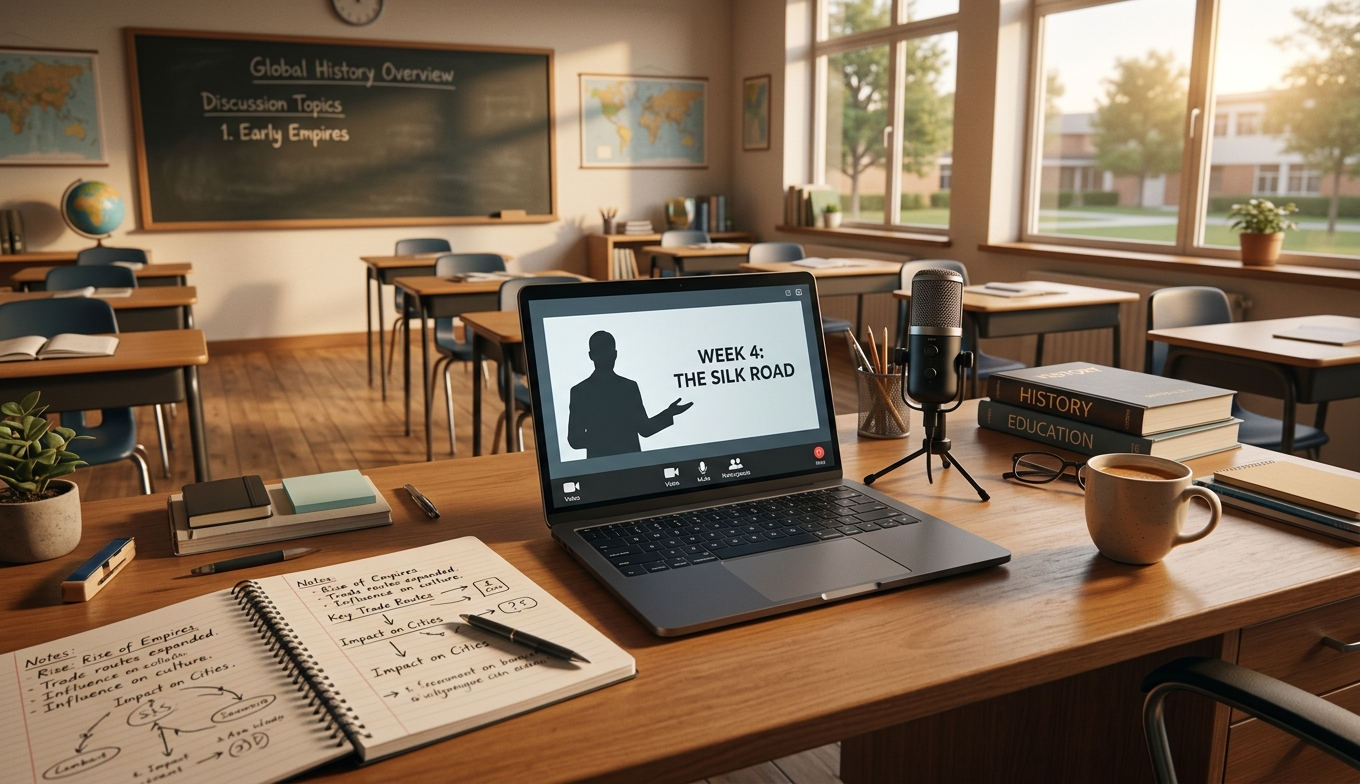
Statista’s 2024 corporate training report found that 78% of large employers now publish at least some training content as on-demand video, and the figure is even higher in K-12 and higher education where recorded lectures are the new default. The volume is rising faster than the production budgets behind it. Most teachers and trainers cannot afford a video team, and most do not need one for a recording of a lecture or a quick demo. They do need their footage to look watchable on a laptop and a phone, which is where a focused AI toolset earns its place. Here is what works in 2026. The institutions that adopt early tend to keep their advantage, partly because production routines compound and partly because student expectations rise alongside the platforms students already use elsewhere.
Why instructional video sets its own quality bar
Educational footage is forgiving in some ways and unforgiving in others. Nobody expects film-grade colour from a lecture capture, but viewers will quit a webinar over compressed audio, unreadable on-screen text, or noisy webcam video. Online learning research from EDUCAUSE has consistently shown that perceived audio and video quality correlates with course completion rates more than any other production factor. AI enhancement closes the gap on the camera side without making teachers learn an NLE. Faculty time is the scarcest currency in most departments, so the right tool is the one that costs the least minutes per recorded hour of footage. That filter rarely lines up with the tools that sound most impressive in a faculty newsletter.
What to look for in an educator-friendly tool
Educator workflows have four specific requirements that general-purpose creator tools sometimes miss.
- Batch processing. A semester’s lectures must process while the instructor is teaching the next class.
- Closed-caption friendliness. Output must remain compatible with the captions and transcripts the LMS already generates.
- Predictable output. No surprise stylisation; courses should look consistent across episodes.
- Institutional compliance. Tools used at scale need a privacy posture the IT department will sign off on.
The first two are deal-breakers for most academic workflows.
Four AI video tools educators are actually using
We tested the four below on three reference clips: a 720p webinar capture, a 1080p classroom demo, and a 480p archived workshop from 2018. Hardware: a faculty-tier Windows laptop without a dedicated GPU, and a Chrome browser.
UniFab AI Video Enhancer Online
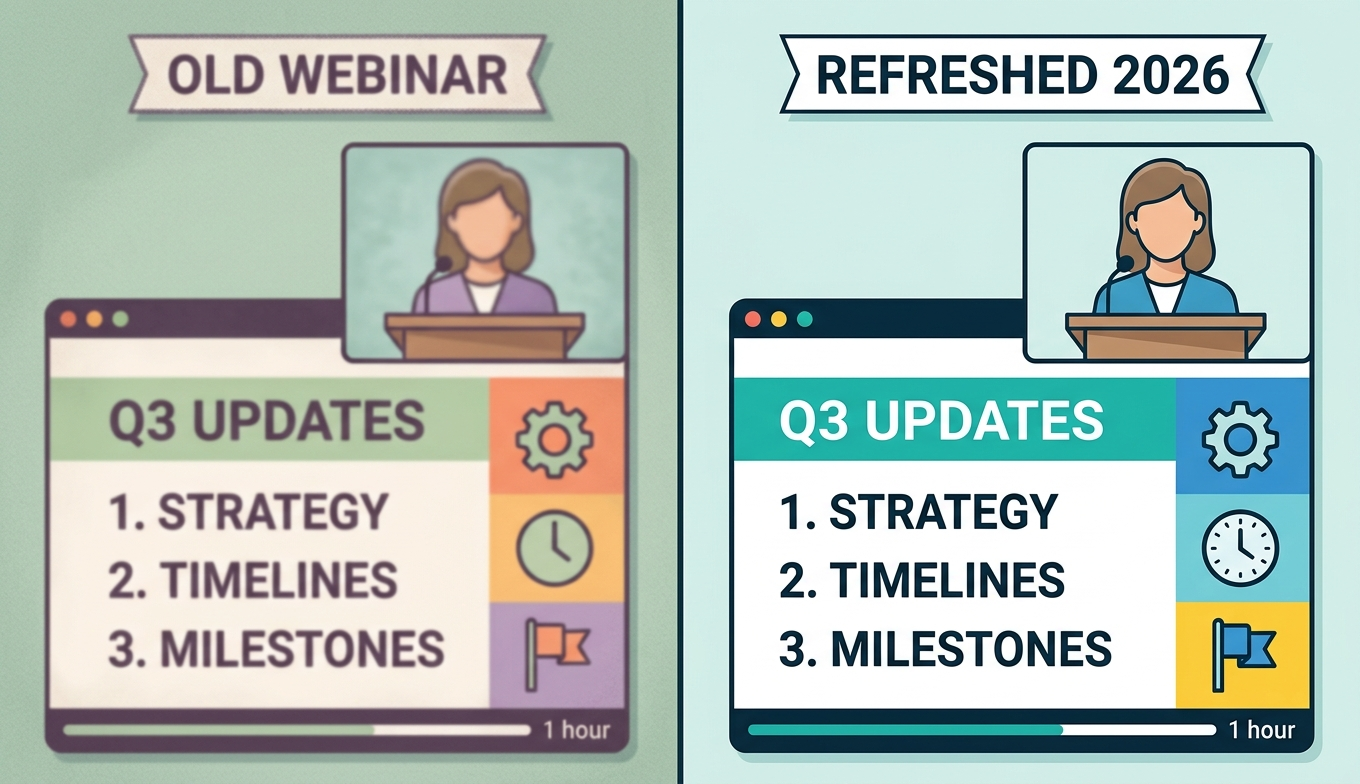
The Online AI Video Enhancer ran our webinar capture through a 2x upscale and noise pass without needing any local GPU. New accounts get free FabCloud credits — enough to test a full lecture before committing to a 600-credit subscription. Browser-based delivery is the deciding factor for many educators because no IT ticket is needed to install software. The 2x ceiling fits the math: a 720p lecture lands at 1440p, which holds up on student laptops without forcing a 4K master that the LMS would re-compress anyway.
Topaz Video AI (desktop)
Topaz produces strong results for the same 720p capture, but the $299 license, the install requirement, and the GPU need keep it out of most classroom budgets. Best held for a one-time archive cleanup project, not weekly use.
HitPaw VikPea
HitPaw VikPea sits between the cloud and desktop options, with a face-restoration mode useful for instructor close-ups. The watermarked trial limits testing on real course material.
Tensorpix (browser)
Tensorpix offers a clean browser workflow but tends to be priced per minute, which adds up over a semester compared to the credit subscription model.
A semester refresh that paid for itself
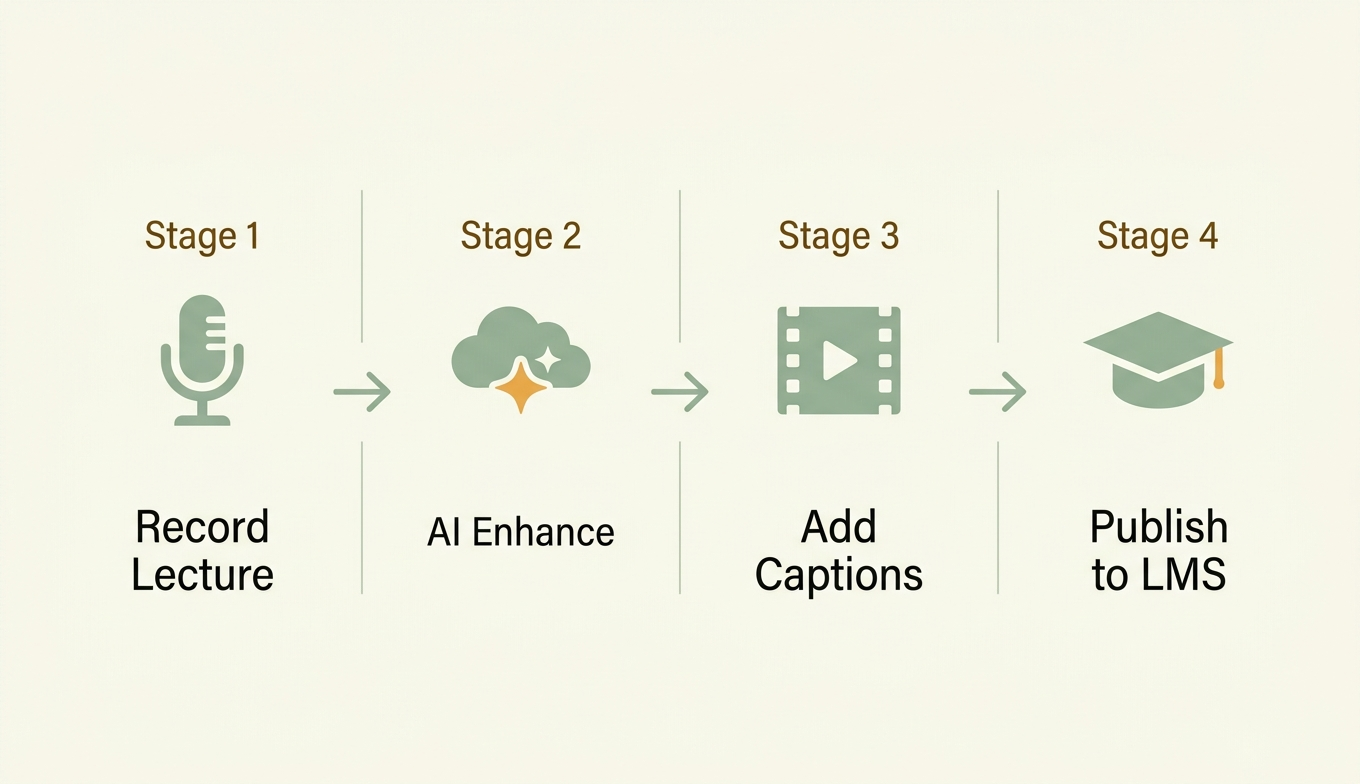
An online programme coordinator we spoke with refreshed four years of legacy lecture recordings before the autumn intake. Her chain was simple: an AI Video Upscaler for the 2018 archive clips that were stuck at 720p, then a light enhancement pass through the same suite for the audio cleanup. The total cost came in under one new course buyout, and student satisfaction scores for the refreshed modules rose by a measurable margin in the first term.
FAQ
Can AI enhancement keep my captions in sync?
Yes if you keep the same frame rate and avoid frame interpolation. Frame doubling will desync captions.
Is browser-based processing safe for student content?
Read the provider’s privacy policy and data retention terms before processing any footage containing identifiable students.
Can I improve audio with these tools?
Some include basic noise reduction; for serious audio work pair them with a dedicated tool like a free desktop audio editor.
Will my LMS accept the enhanced files?
Most accept standard MP4. Confirm container and codec settings during your test pass.
Does enhancement affect file size in our LMS?
Yes, often substantially. A 4x upscale can quadruple file size. Re-encode at conservative bitrates to keep LMS storage costs sane while preserving readable quality.
Final thoughts
Educational video is one of the clearer wins for AI enhancement in 2026. The footage is forgiving enough that modest passes produce visible gains, and the budgets are tight enough that the right tool earns its place in a single semester. Teachers and trainers do not need a film team. They need a reliable, low-friction upgrade to the work they already record. The departments that have moved earliest report a side benefit: refreshed archives extend the useful life of course material that previously felt dated within a year. The savings show up in the next syllabus update, not the next budget cycle, but they are real.